YouTube Premium Offline Videos Not Playing? Fix Guide (2026)
If you’ve paid for YouTube Premium but your offline videos not playing, it can be frustrating. You may have downloaded videos to watch later, but they simply won’t load or show up. Fortunately, there are several reasons why this can happen and simple solutions you can try to get everything working again. In this guide, we’ll walk through the most common causes and how to fix them step-by-step.
Why YouTube Offline Videos Sometimes Won’t Play
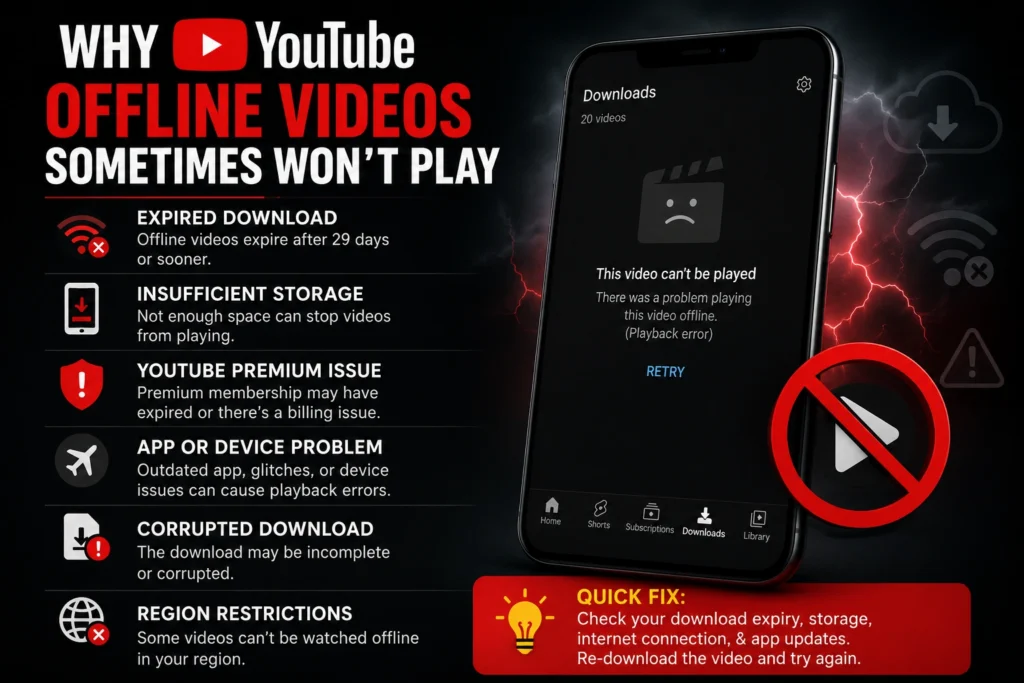
Before jumping into the solutions for offline videos not playing, it’s important to understand the common reasons why your YouTube Premium offline videos may not work. Identifying the cause can help you fix the problem faster. Here are the main reasons offline videos are not playing:
Offline Video Expired
YouTube requires you to go online at least once every 29 days to renew offline video licenses. If you haven’t connected to the internet within that time, your offline videos will expire.
Login or Account Issues
If you’re signed into a different Google account than the one you used to download the videos, you won’t be able to play them.
App Cache or Glitches
Corrupted cache data or temporary bugs in the app can prevent offline videos from loading or playing.
Storage Problems
If your device’s storage is full or almost full, YouTube might struggle to play or store offline videos properly.
Download Corruption
Sometimes, a download gets interrupted or corrupted during the process, causing playback issues.
Fix 1 — Connect to the Internet and Refresh Offline Licenses
This is the most common fix, and it’s often the easiest.
Steps to Fix Expired Videos:
Connecting to the internet allows YouTube to refresh the offline license, which can fix the issue of offline videos not playing.
Fix 2 — Make Sure You’re Signed Into the Right Account
If you downloaded videos on one account but opened YouTube with another, offline videos won’t play. Ensure you’re signed into the same Google account you used for the Premium subscription.
How to Check:
Fix 3 — Restart or Update the YouTube App
If your offline videos are not playing, simply restarting or updating the YouTube app can often fix playback issues caused by temporary glitches.
Steps:
Restarting or updating helps resolve syncing issues between your account and the app.
Fix 4 — Clear App Cache (Android Only)
For Android users, clearing the app’s cache is an effective fix to solve issues with offline playback.
How to Clear Cache:
Clearing cache removes temporary files that may be interfering with playback.
Fix 5 — Check Device Storage
Offline videos not playing? Check your device storage. Offline videos are stored directly on your device, so if your storage is full or nearly full, YouTube may not be able to store or play your downloaded videos properly.
What to Do:
Fix 6 — Redownload the Videos
If a video download was interrupted or corrupted, it may need to be redownloaded.
Steps to Redownload Videos:
If your offline videos not playing, re-download them. Re-downloading ensures the file is fresh and properly stored for offline viewing.
Fix 7 — Re‑Login to YouTube App
Logging out and back in refreshes your account session, which may resolve syncing issues that prevent offline videos from playing.
Steps:
If your offline videos are not playing, make sure you’re signed in to the correct YouTube account. This ensures your offline videos are linked to the right account.
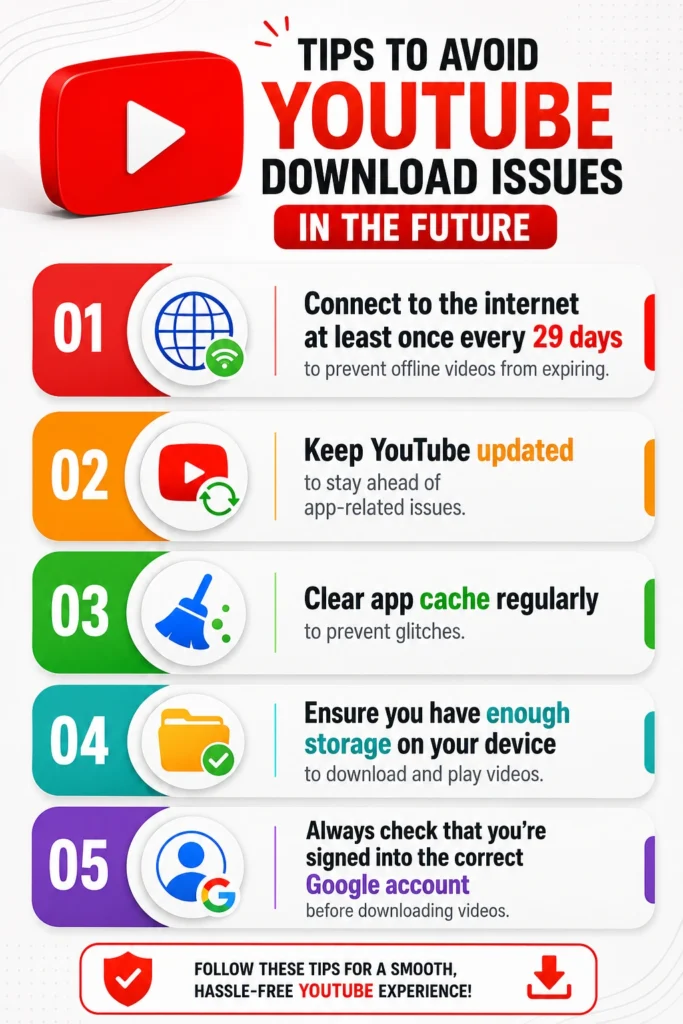
Tips to Avoid YouTube Download Issues in the Future
Once you’ve resolved the issue, here are some tips to avoid problems with YouTube Premium offline videos in the future:
Frequently Asked Questions (FAQs)
Conclusion
If your YouTube Premium offline videos not playing, it’s often due to expired licenses, app glitches, storage problems, or being logged into the wrong account. By following the steps outlined in this guide — like connecting to the internet, updating your app, clearing cache, and checking storage — you should be able to resolve the issue quickly and enjoy your offline videos again. If the problem persists, don’t hesitate to contact YouTube Support for further assistance.